Review a Spec
A spec can read well and still leave a reader guessing. A rule might say what happens above and below a limit while leaving the exact boundary untested. The same rule can also appear in two specs and drift when only one is updated.
Use review-spec to catch those problems before they make their way into step implementations. The agent checks the spec against your team's guidelines and shows findings next to the relevant lines in IntelliJ IDEA.
Run a review
- Connect your agent to IntelliJ IDEA with the SpecBinder plugin installed. Setup
- Open the spec and ask your agent to review it. For example, ask “Review
ShoppingCart.specbfor blockers and gaps.” If the spec has an open Claude Code session, you can also use Review This Spec on the spec toolbar. - Open the AI Review tab to work through the findings. Enable it under Settings → SpecBinder → Split view if needed.
The agent reads the editor's copy, including unsaved changes. Findings include the text they refer to and the reason it was flagged. When the agent proposes a fix, you can inspect the change and select Apply or Dismiss. You can also ask the agent to explain a finding by its number.
Use Review Checks in the IDE to choose which kinds to include. For example, focus on blockers and gaps early and include wording and formatting once the behavior is settled. Naming kinds in your request sets the scope for that review.
Set your team's review guidelines
Reviews follow .specbinder/review-guidelines.md and any Markdown files under .specbinder/review-guidelines/. If the project has no guidelines yet, the agent offers starter checks before it runs a review. You choose which checks to keep and can add ones that reflect your domain.
Each section declares a finding kind with Kind: and uses Flag: bullets for checks. For example, an edge-cases category can ask the agent to look for missing examples at a threshold. Enable Gap in the review and include the edge case guidelines to get proposed scenarios for missing cases. Guideline format and starter checks
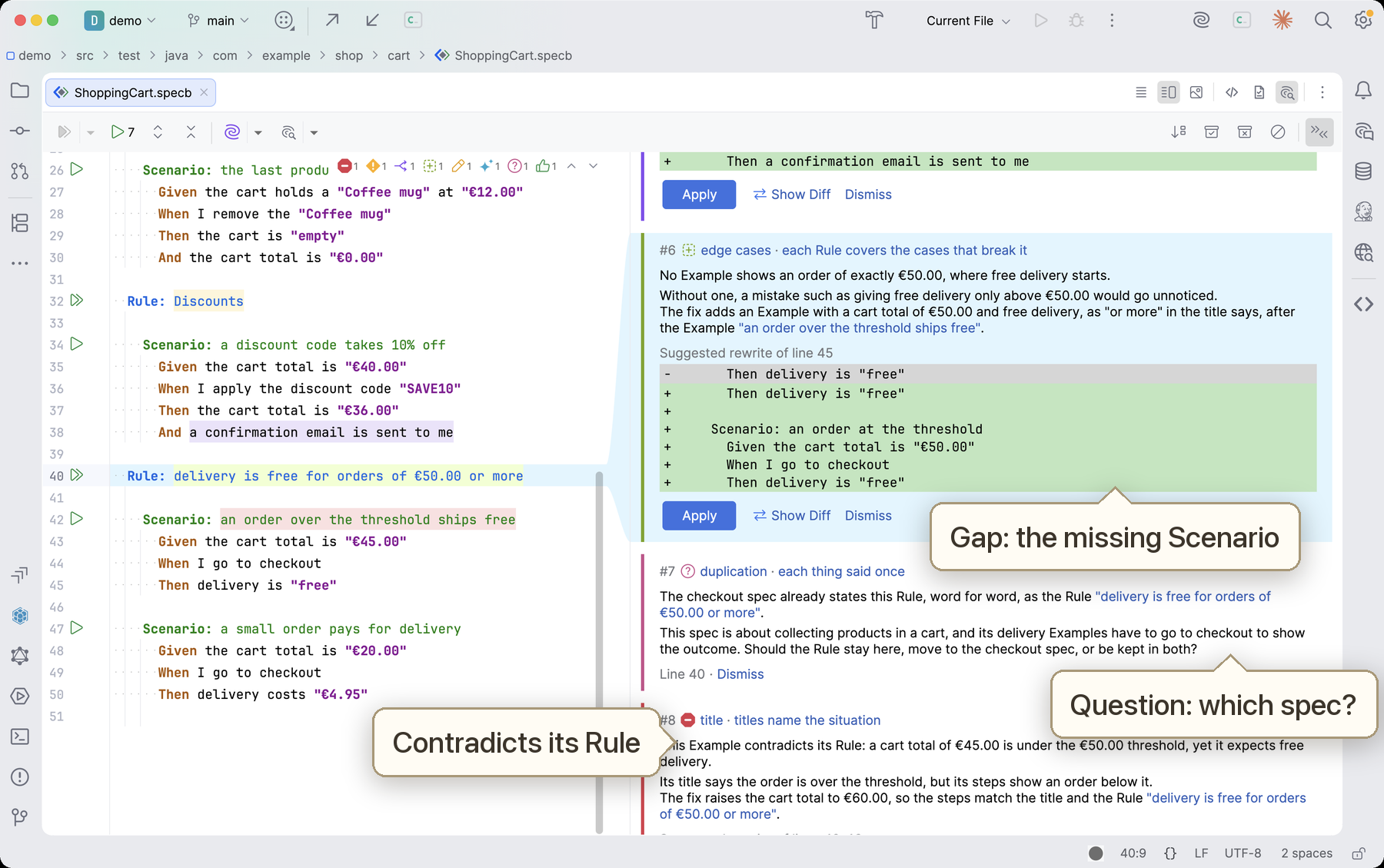
Example of a missing delivery case
In the skills demo, the rule says delivery is free for orders of €50.00 or more. One scenario calls €45.00 an order over the threshold. The suite also has no example for an order of exactly €50.00. A review can propose two separate fixes. Use an amount above €50.00 in the first scenario and add a scenario at the boundary.
Scenario: an order at the threshold ships free
  Given the cart total is "€50.00"
  When I go to checkout
  Then delivery is "free"
Find duplicated behavior
Add the starter duplication guidelines to look for rules and scenarios that cover the same behavior. Two scenarios can show the same case even if their titles differ or they use different values. When the setup, action, and expected outcome are equivalent, the agent can suggest keeping one scenario and preserving any distinct checks from the other. It can also suggest merging equivalent rules while keeping their scenarios.
Enable Issue to find duplicate rules and scenarios within the file. Enable Question to have the review check for overlap with other spec files. A question points to the matching rule or scenario so you can decide where the behavior belongs.
In the demo, both ShoppingCart.specb and Checkout.specb say delivery is free on orders of €50.00 or more. The review links to the rule in the checkout spec and asks which spec should carry it. Keeping the rule in one place gives you a single threshold to update when the policy changes. Starter duplication guidelines
Try the review on ShoppingCart.specb in the demo project, which already includes review guidelines and examples of each finding kind. Review demo
When a split finding proposes dividing a broad Feature into smaller blocks, you can then move those blocks into their own files. Separate Out Specs
You can also pick the part to divide off yourself and have the agent move it, with Move Under a New Rule for scenarios that need a rule of their own, or Move Under a New Spec for rules and scenarios that need a Feature of their own.